分類: 軟件

  • 用PYTHON每日更新追蹤香港COVID-19確診或到訪大廈名單

    過了農曆新年, 全港疫情大爆發, 好多香港人都會每日上網看看”衛生署”的確診名單 , 尤其對做物管及做公司ADMIN朋友 , 某程度上有少許幫助 , 但間中最好抽查https://www.chp.gov.hk/files/pdf/building_list_chi.pdf

    所以我寫了一個小程式來追蹤指定大廈是否在確診名單內

    本身我寫的程式在 LINUX 運行 , 每天會自動執行一次再電郵給我 , 但好多人公司或家用電腦都是行 windows 所以我修改程式適合在 windows 行及輸出檔案是 EXCEL FILE

    設計該程式概念 : 先下載衛生署 PDF 名單 , 轉換成文字檔方便程式讀取 , 之後程式核對 自定名單同衛生署名單有沒有匹配 , 記錄你要找的數據 , 把文字檔轉換成 EXCEL FILE

    步驟一:

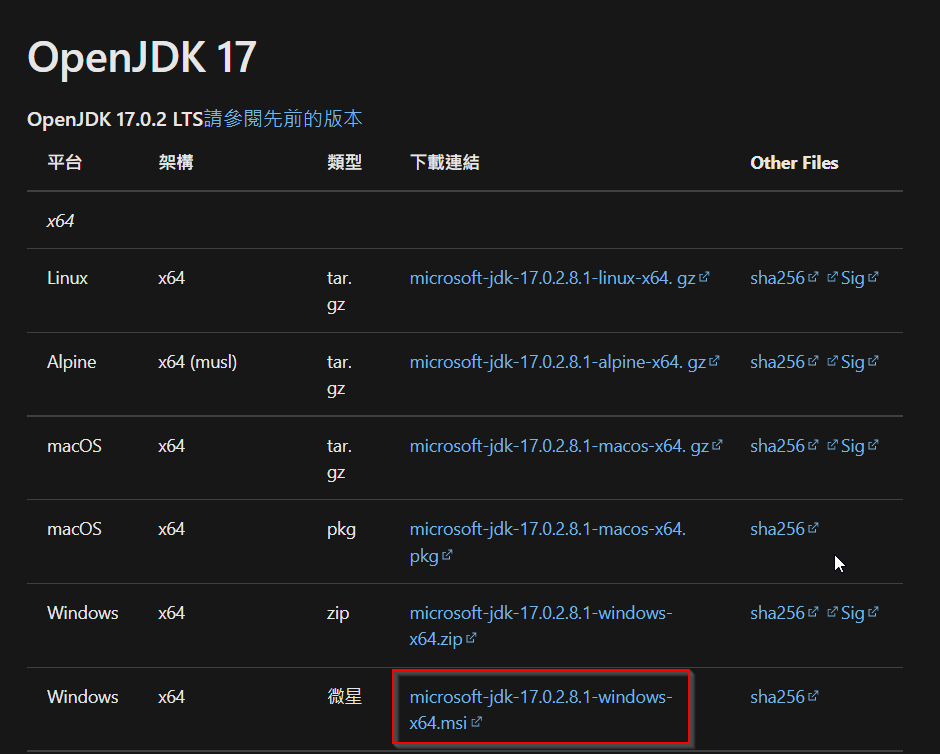
    先安裝 windows 版 OPENJDK 下載網址: https://docs.microsoft.com/zh-tw/java/openjdk/download

    64bit windows 下載64bit版, 32bit windows 下載32bit版

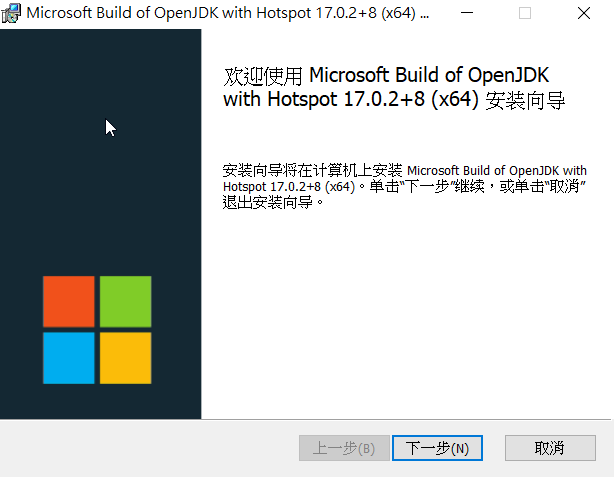
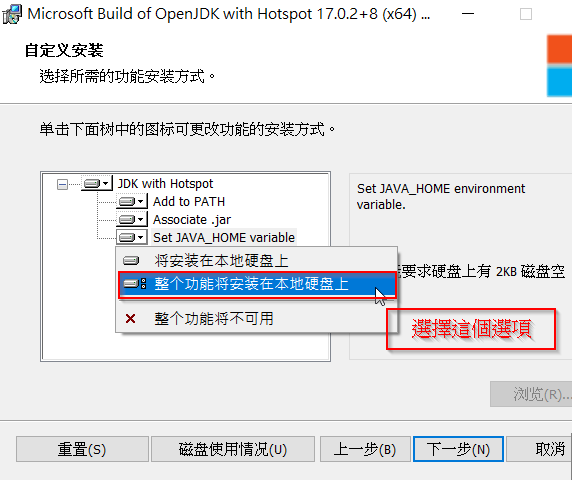
    下載完直接安裝

    步驟二:

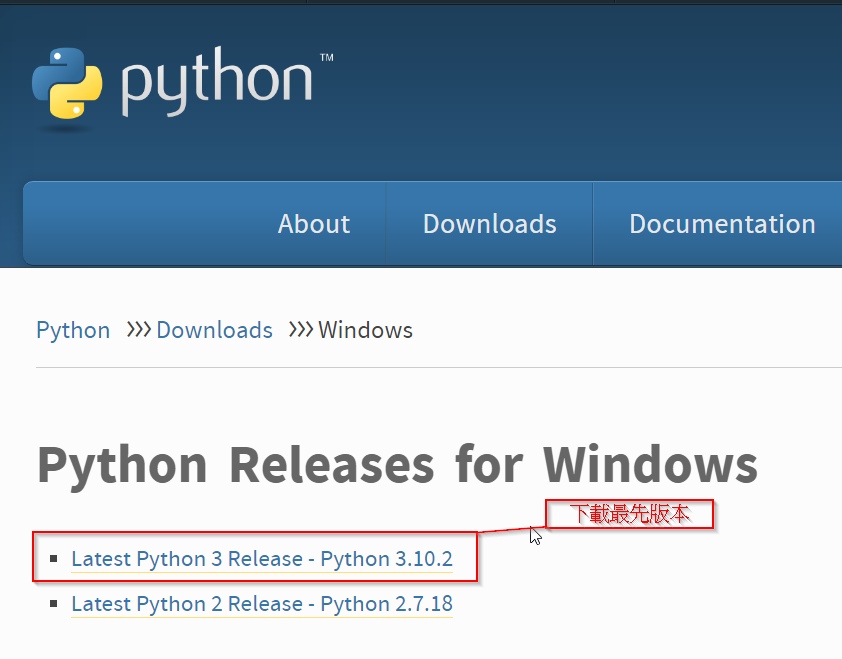
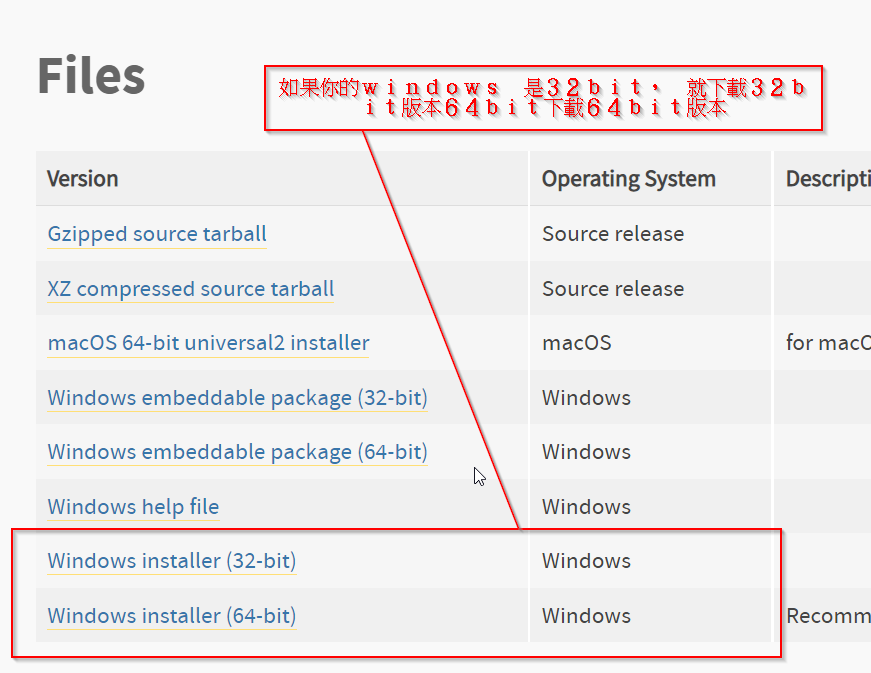
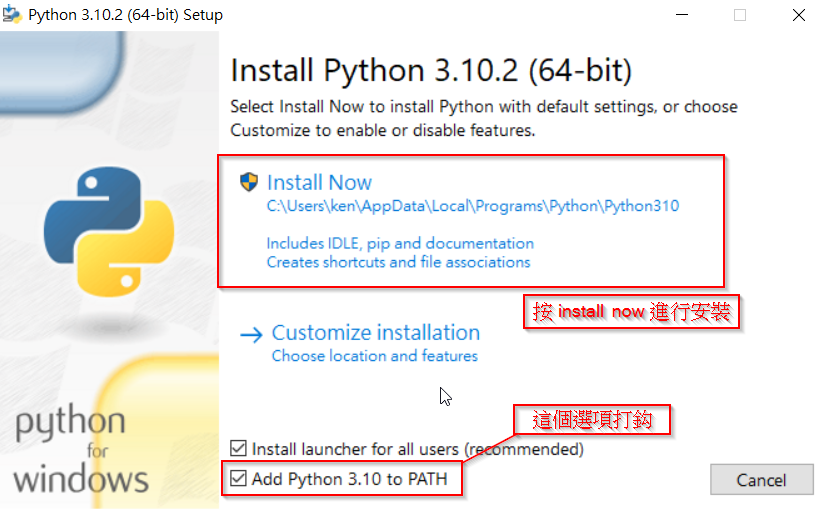
    安裝 Python 程式語言 , 下載網址: https://www.python.org/downloads/release/python-3102/

    下載完直接安裝

    完成後要裝程序需要的python模組

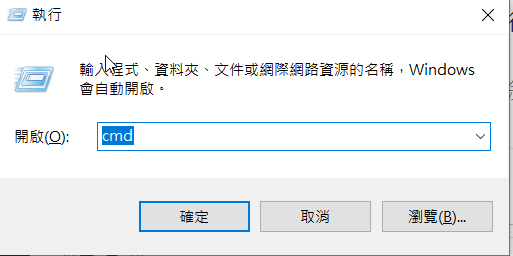
    按 “win key” + R , 執行 “CMD”

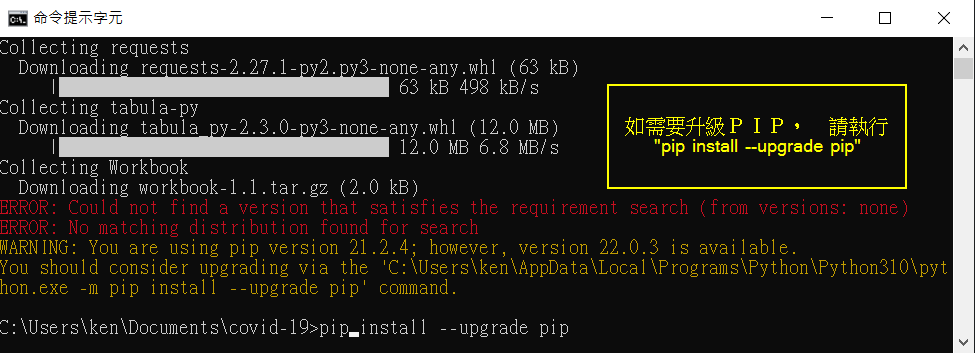
    升級 python pip 下載器 , 在 “命令提示字元” 內 輸入 :

    pip install –upgrade pip

    注意 : –upgrade 前是兩個 – 減號

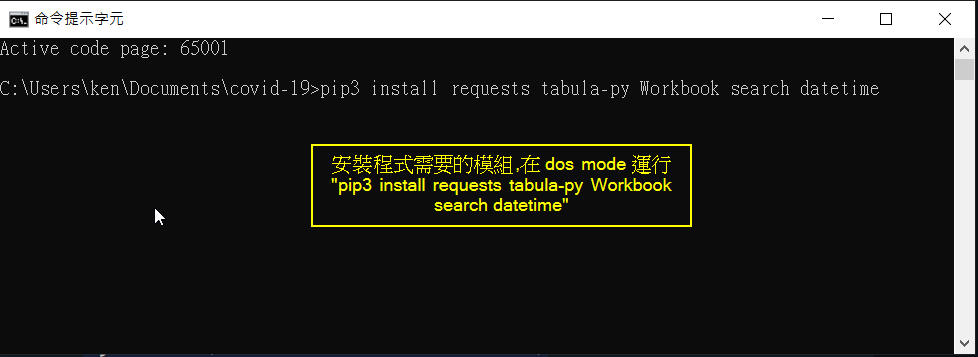
    安裝python模組, 在 “命令提示字元” 內 輸入 :

    pip3 install requests tabula-py Workbook datetime openpyxl

    步驟三:

    如果你的電腦已經有軟件可以開啟 UTF8 FILE可以 忽略這個

    安裝 notepad++ 軟件 , 免費好用 ! 下載網址: https://notepad-plus-plus.org/downloads/

    步驟四:

    我編寫的程式 : Download

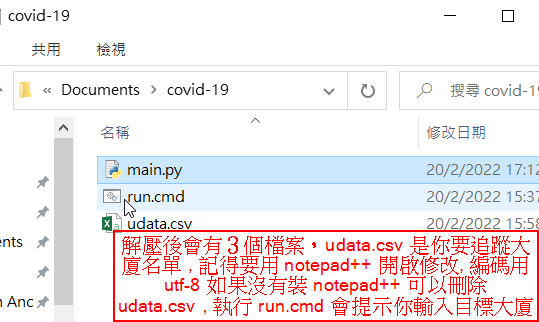
    解壓後內有3個FILE , “run.cmd” “main.py” “udata.csv”

    值得注意的是 , 有些朋友會 “不經意” 把繁簡字混亂使用 , 例子: “厦” 及 “廈” 前者簡體 後者繁體 ! 對系統來說這是不同的字 , 如果你輸入的 “某某大厦” 是會找不到的, 應該”某某大廈”才能找到 , 所以我建議不要用全名, 用 “某某”

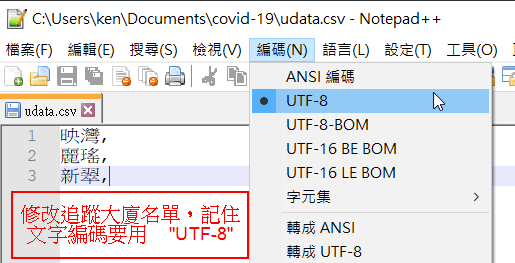
    用 notepadd++ 修改 udata.csv , 編碼 utf-8

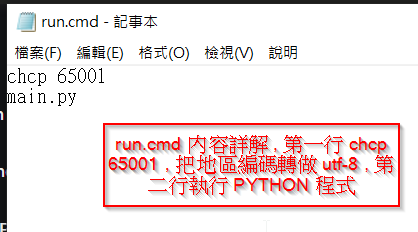
    run.cmd 內容如下所示

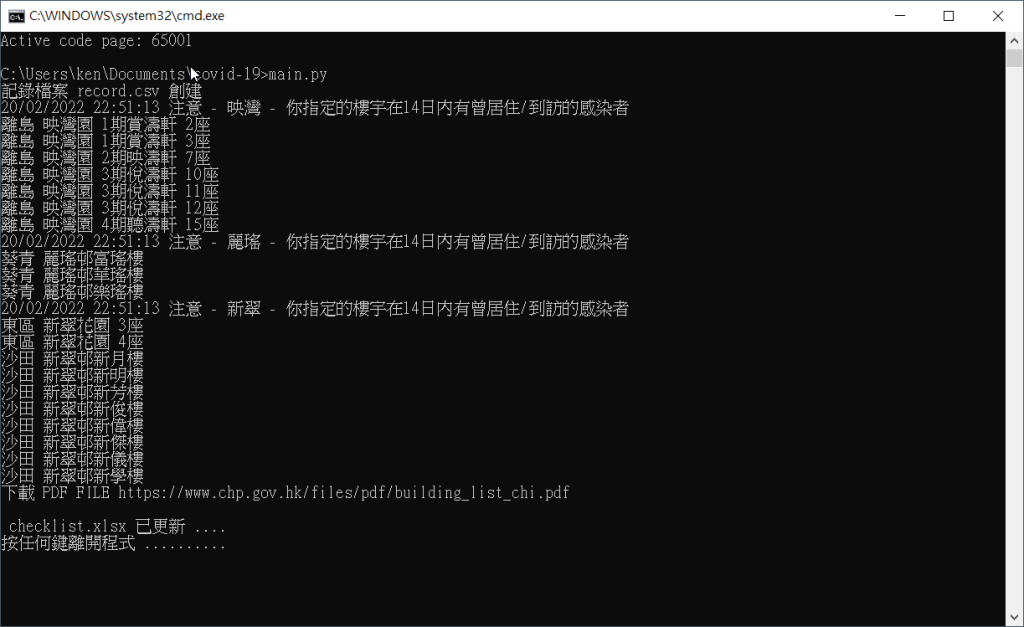
    double click “run.cmd” 會執行程式, 如下圖

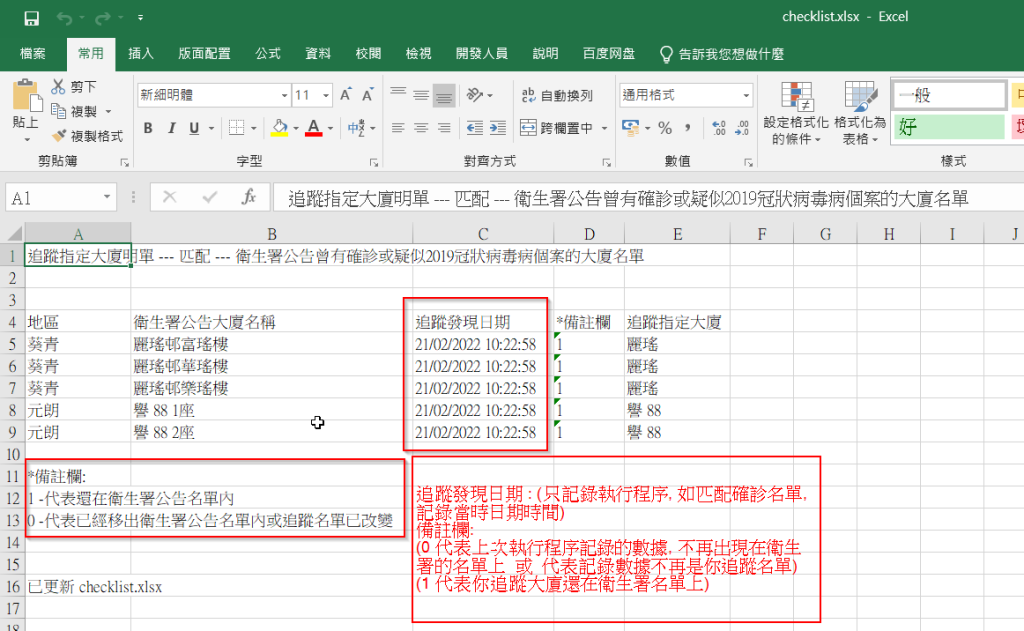
    同時會有5個FILE 產生 , “building_list_chi.pdf” 是從衛生署下載的名單 , “data.csv” 是從PDF轉換成文字檔, “email.csv” 是輸出文字備用EMAIL, “record.csv” 是記錄你找到的記錄, “checklist.xlsx” 是可以用 EXCEL 開啟的記錄

    備註: 所有 CSV 檔案都是 UTF8 編碼, 用 EXCEL 開會亂碼 , 如果真的要開用 NOTEPAD++ 或者用 libreoffice 都可以正常顯示中文字

    如有疑問可電郵至 info@kenng.hk

  • 用Arduino 控制全彩LED(紅,綠,藍) 三原色調配顏色

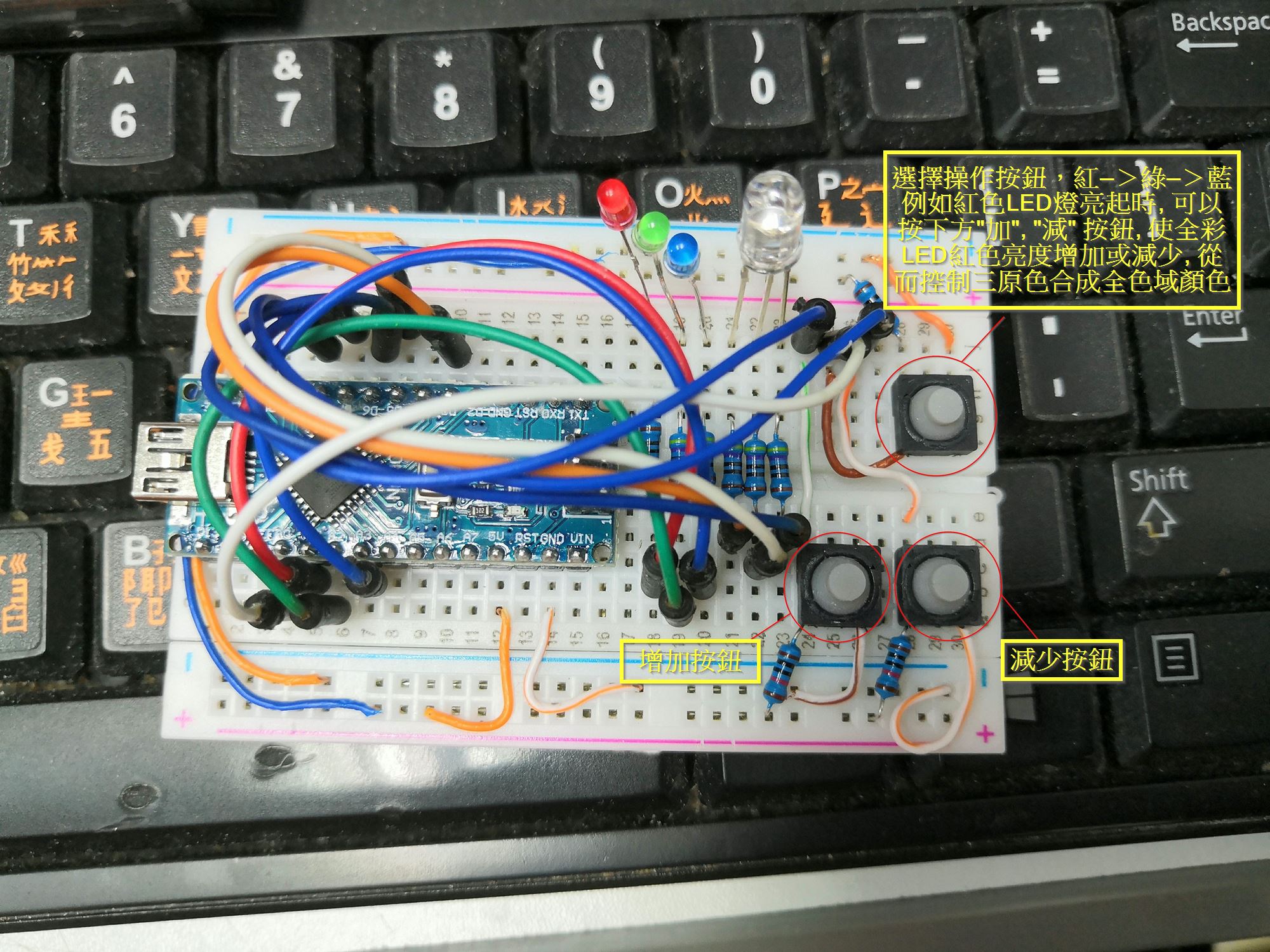
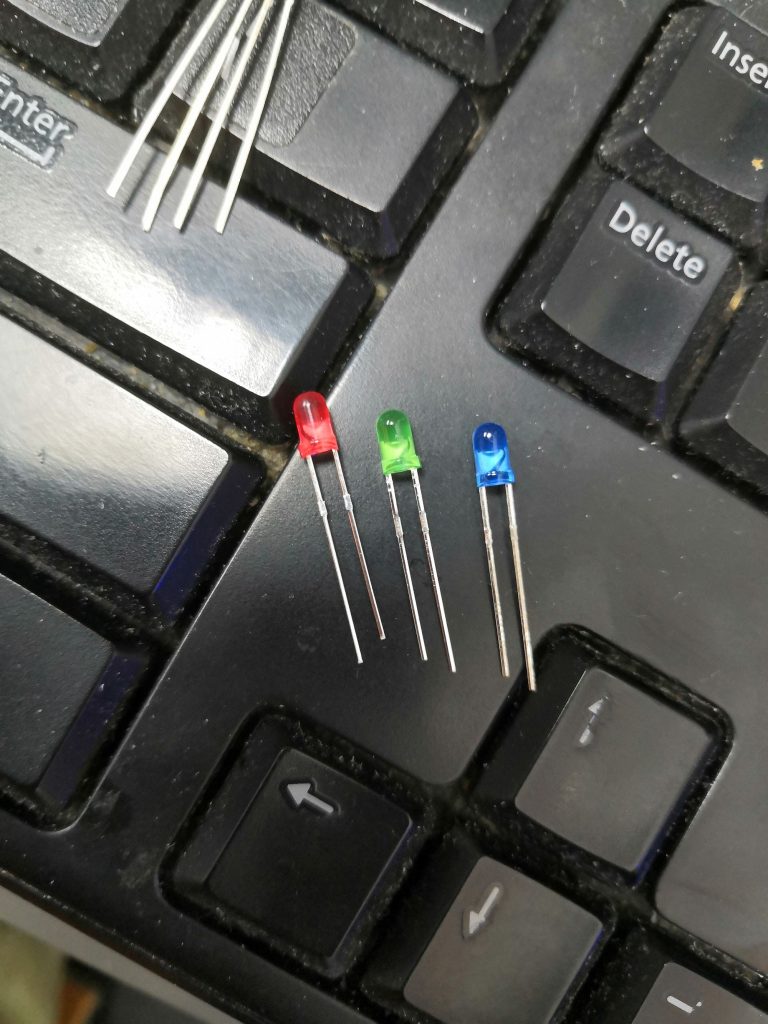
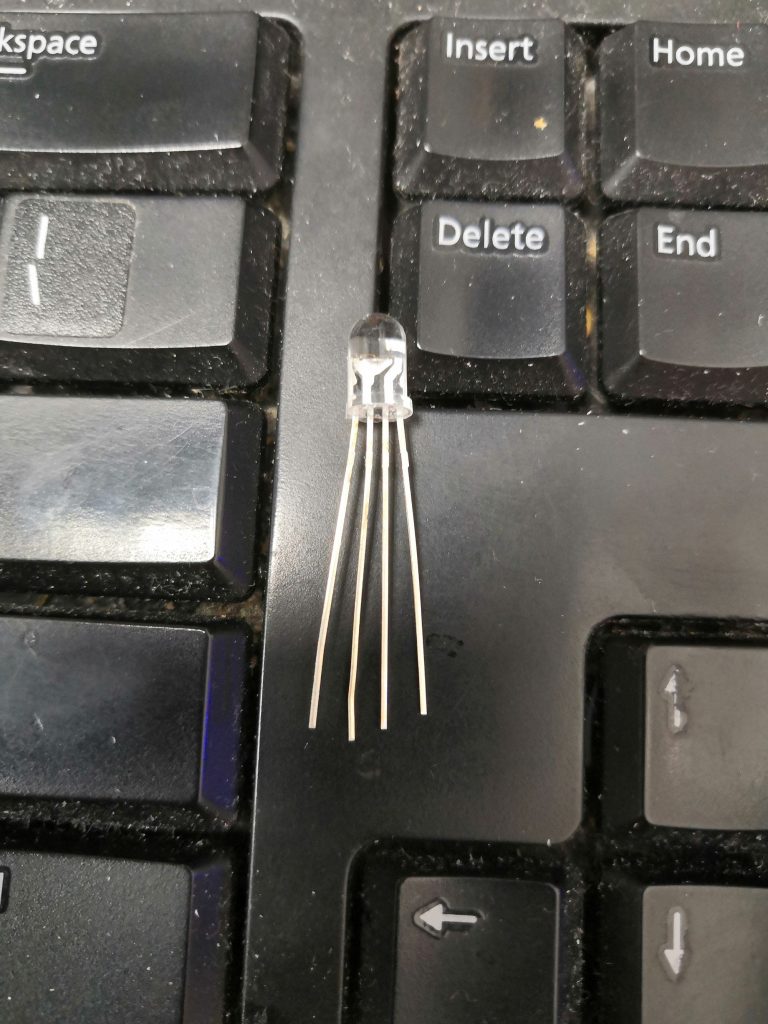
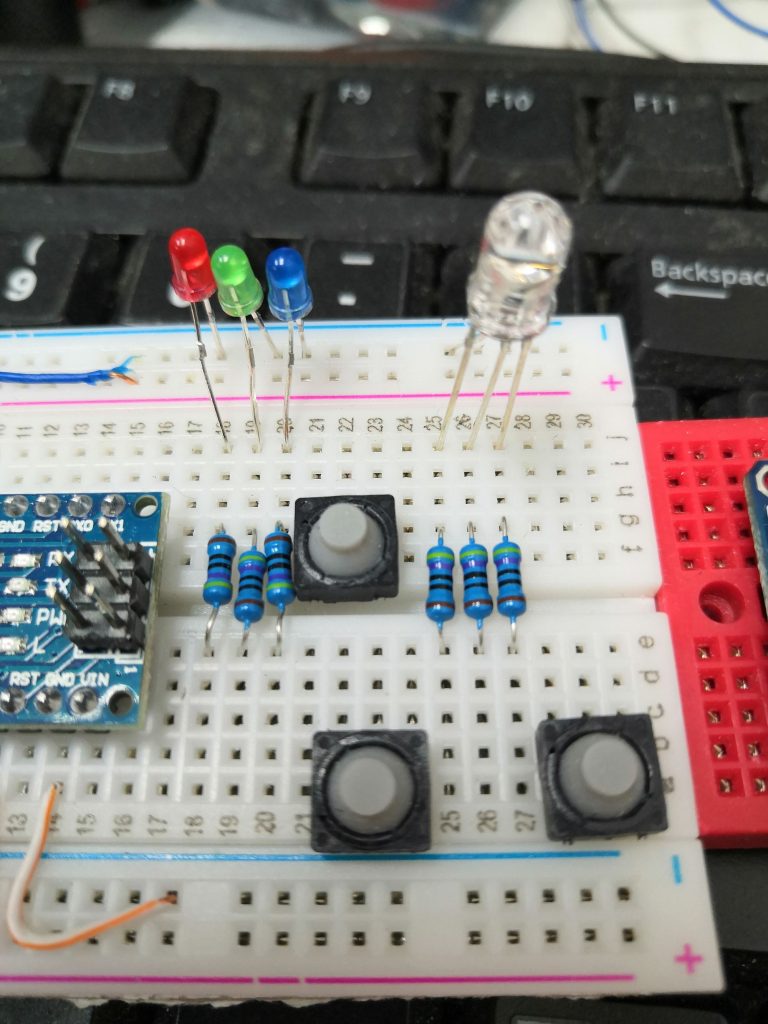
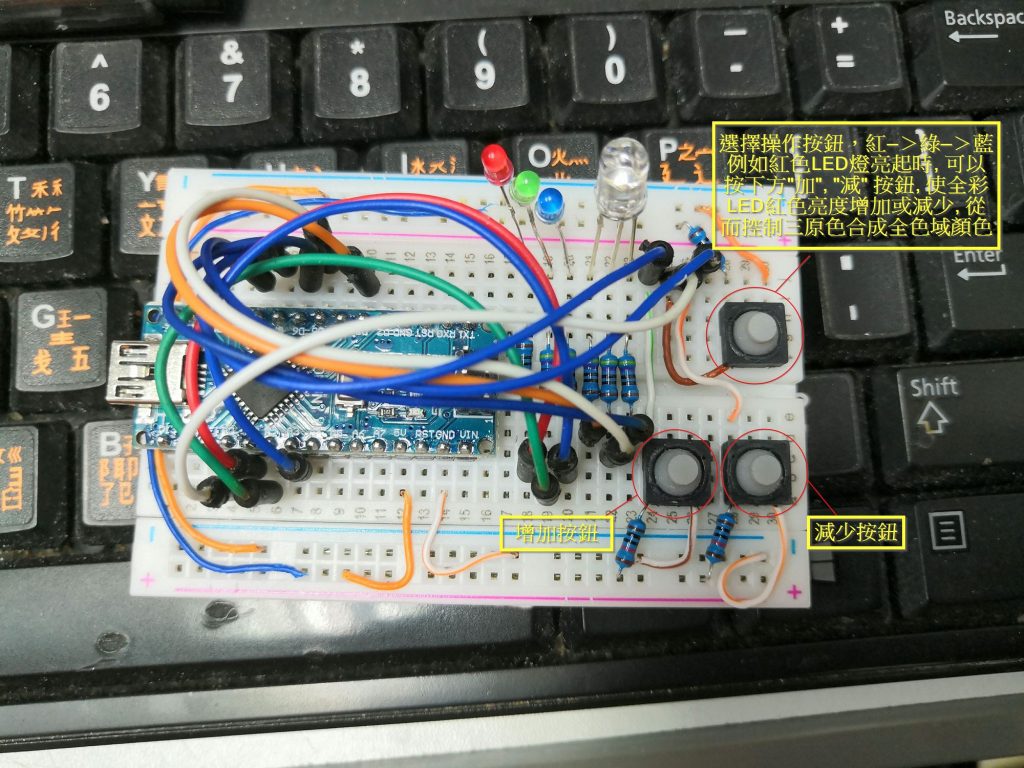
    我們先準備一些材料 , arduino nano , 紅綠藍LED各一, 一粒全彩LED, 3個按鈕,3粒10KΩ電阻(按鈕用) , 6粒150Ω(保護LED用) . 注意我的圖片是用了470Ω , 因為我找不到150Ω

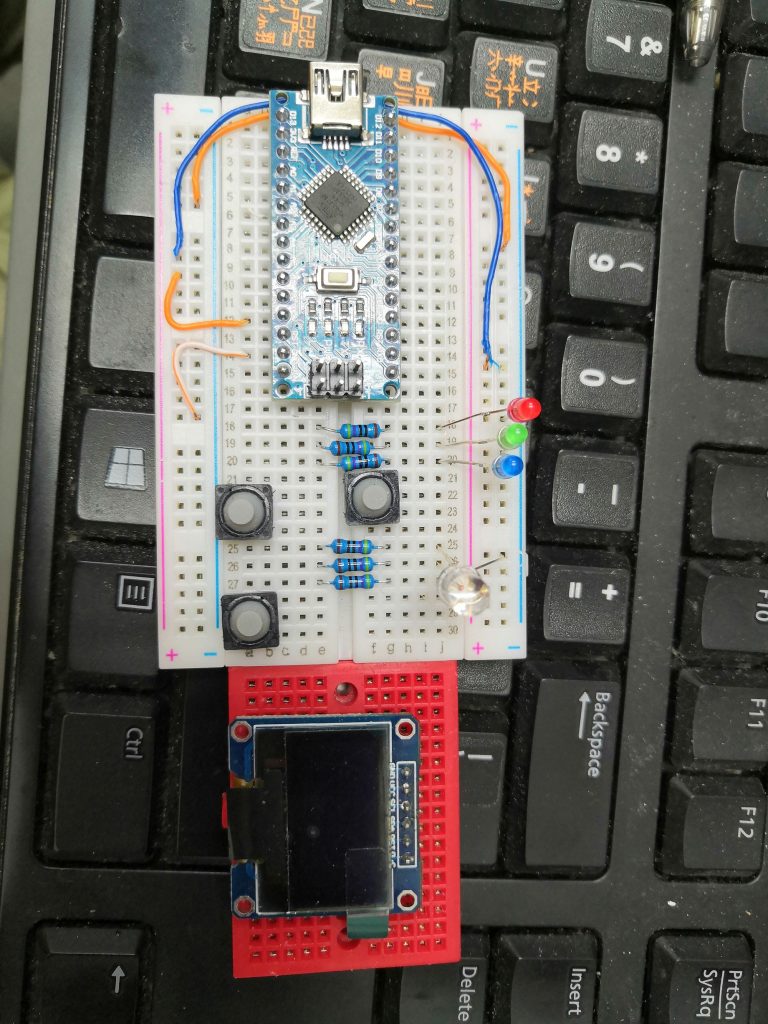
    先看看以下是我的材料圖片

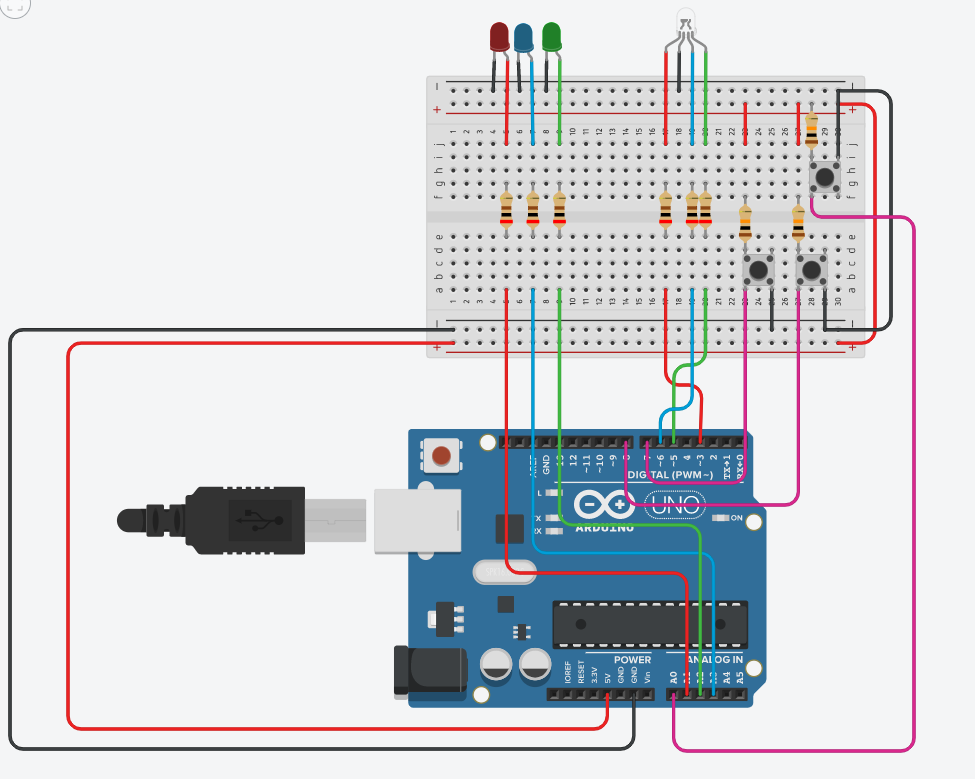
    我用了模擬器製作了一個接線圖給大家參考

    首先我們先了解一下, 脈波寬度調變(英語:Pulse-width modulation,縮寫:PWM)參考網址 : https://zh.wikipedia.org/wiki/脈衝寬度調變 , https://a091234765.pixnet.net/blog/post/399625162-%5B筆記%5Darduino實驗五%3Apwm調控

    我嚐試去表達一下自己的理解 , 如果不正確請不要駡我, 只是我個人的理解能力有限 !

    首先我們假設10秒是一個周期 , 我們有個水桶 , 有一個水龍頭 . 例子1: 打開水龍頭, 水桶開始注水 , 10 秒周期水龍頭都是開著的,水桶就滿了 . 例子2 : 打開水龍頭, 10 秒周期裏水龍頭只開了9秒, 那水桶就只有90%滿 , 例子3 : 打開水龍頭, 10 秒周期裏水龍頭只開了8秒, 那水桶就只有80%滿 以此類推 .

    PWM 用上述例子解釋 , 占空比= 水龍頭開 , 水龍頭開=5V , 水龍頭關=0V , 如果周期內占空比滿戴 , 結果就是 5V , 如果占空比只有75% , 那麼結果是3.75V , 如果占空比只20%, 那麼結果是1V 了 ! 說白了就是控制占空比 , 控制輸出的電壓來控制LED亮度 , 這就是我們今次的目的 , 得出三原色不同亮度的組合來合成各種顏色

    講完構思, 現在實作吧 ! 開始 …… LED 燈加上限流電阻來保護

    按鈕部分 , 一端接 GND , 一端接5V+10K電阻作為 Arduino 輸入訊號端. 平時不按下去 Arduino 輸入訊號端 會是高電壓 , 按下去的時候接地道通, Arduino 輸入訊號端 會是低壓 ! 高低電壓的輸入就會控制 Arduino 程序的流向

    以下是 Arduino 的程序代碼 , 如有興趣的朋友可以下載來玩玩 下載

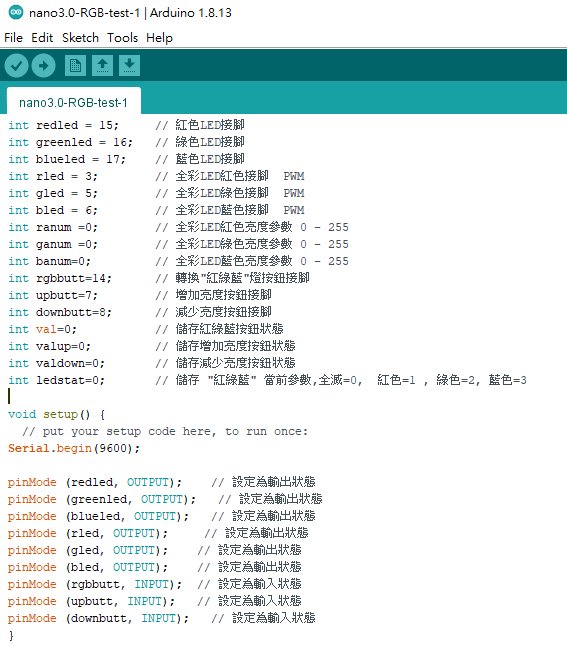
    以下是本人寫的代碼 , 不是寫得好好 ! 請見諒 :

    int redled = 15; // 紅色LED接腳
    int greenled = 16; // 綠色LED接腳
    int blueled = 17; // 藍色LED接腳
    int rled = 3; // 全彩LED紅色接腳 PWM
    int gled = 5; // 全彩LED綠色接腳 PWM
    int bled = 6; // 全彩LED藍色接腳 PWM
    int ranum =0; // 全彩LED紅色亮度參數 0 – 255
    int ganum =0; // 全彩LED綠色亮度參數 0 – 255
    int banum=0; // 全彩LED藍色亮度參數 0 – 255
    int rgbbutt=14; // 轉換”紅綠藍”燈按鈕接腳
    int upbutt=7; // 增加亮度按鈕接腳
    int downbutt=8; // 減少亮度按鈕接腳
    int val=0; // 儲存紅綠藍按鈕狀態
    int valup=0; // 儲存增加亮度按鈕狀態
    int valdown=0; // 儲存減少亮度按鈕狀態
    int ledstat=0; // 儲存 “紅綠藍” 當前參數,全滅=0, 紅色=1 , 綠色=2, 藍色=3

    void setup() {
    // put your setup code here, to run once:
    Serial.begin(9600);

    pinMode (redled, OUTPUT); // 設定為輸出狀態
    pinMode (greenled, OUTPUT); // 設定為輸出狀態
    pinMode (blueled, OUTPUT); // 設定為輸出狀態
    pinMode (rled, OUTPUT); // 設定為輸出狀態
    pinMode (gled, OUTPUT); // 設定為輸出狀態
    pinMode (bled, OUTPUT); // 設定為輸出狀態
    pinMode (rgbbutt, INPUT); // 設定為輸入狀態
    pinMode (upbutt, INPUT); // 設定為輸入狀態
    pinMode (downbutt, INPUT); // 設定為輸入狀態
    }

    void loop() {
    // put your main code here, to run repeatedly:
    val = digitalRead(rgbbutt);
    delay(50);
    // Serial.println (val);

    if (val == LOW) {
    val = digitalRead(rgbbutt);
    if (val == HIGH){
    ledstat=ledstat+1;

            if (ledstat == 1) {
              digitalWrite(redled,1);
              digitalWrite(greenled,0);
              digitalWrite(blueled,0);
            }
            else if (ledstat == 2) {
              digitalWrite(redled,0);
              digitalWrite(greenled,1);
              digitalWrite(blueled,0);  
            }
            else if (ledstat == 3) {
              digitalWrite(redled,0);
              digitalWrite(greenled,0);
              digitalWrite(blueled,1);  
            }
            else {
              digitalWrite(redled,0);
              digitalWrite(greenled,0);
              digitalWrite(blueled,0);
              ledstat=0;
            }
    }

    }

    Serial.println (ledstat);
    if (ledstat == 1 ) {
    valup = digitalRead(upbutt);
    valdown = digitalRead(downbutt);
    delay(20);
    if (valup == LOW) {
    if (ranum < 255 ){ ranum = ranum+1; Serial.println (“紅色”+String(ranum)); } } if (valdown == LOW) { if (ranum > 0 ){
    ranum = ranum-1;
    }
    }
    analogWrite(rled,ranum);
    }

    else if (ledstat == 2) {
    valup = digitalRead(upbutt);
    valdown = digitalRead(downbutt);
    delay(20);
    if (valup == LOW) {
    if (ganum < 255 ){ ganum = ganum+1; } } if (valdown == LOW) { if (ganum > 0 ){
    ganum = ganum-1;
    }
    }
    analogWrite(gled,ganum);
    }
    else if (ledstat == 3) {
    valup = digitalRead(upbutt);
    valdown = digitalRead(downbutt);
    delay(20);
    if (valup == LOW) {
    if (banum < 255 ){ banum = banum+1; } } if (valdown == LOW) { if (banum > 0 ){
    banum = banum-1;
    }
    }
    analogWrite(bled,banum);
    }

    Serial.println (String(ranum)+”:”+String(ganum)+”:”+String(banum));
    }

    以下是我自己完成後做的 DEMO 視頻

    理論上可以實現全彩 , 但因為 LED 各色的參數是不一樣 红2.1v,绿2.8v,蓝2.8v,白3.1v ! 我的 DEMO 不能完全的全彩

  • ARDUINO 模擬器

    近期健伍試用一款模擬器 , 等我介紹一下比大家看看, 我都是初學不是太熟識

    我用的是 AUTODESK TINKERCARD , 網圵 : https://www.tinkercad.com

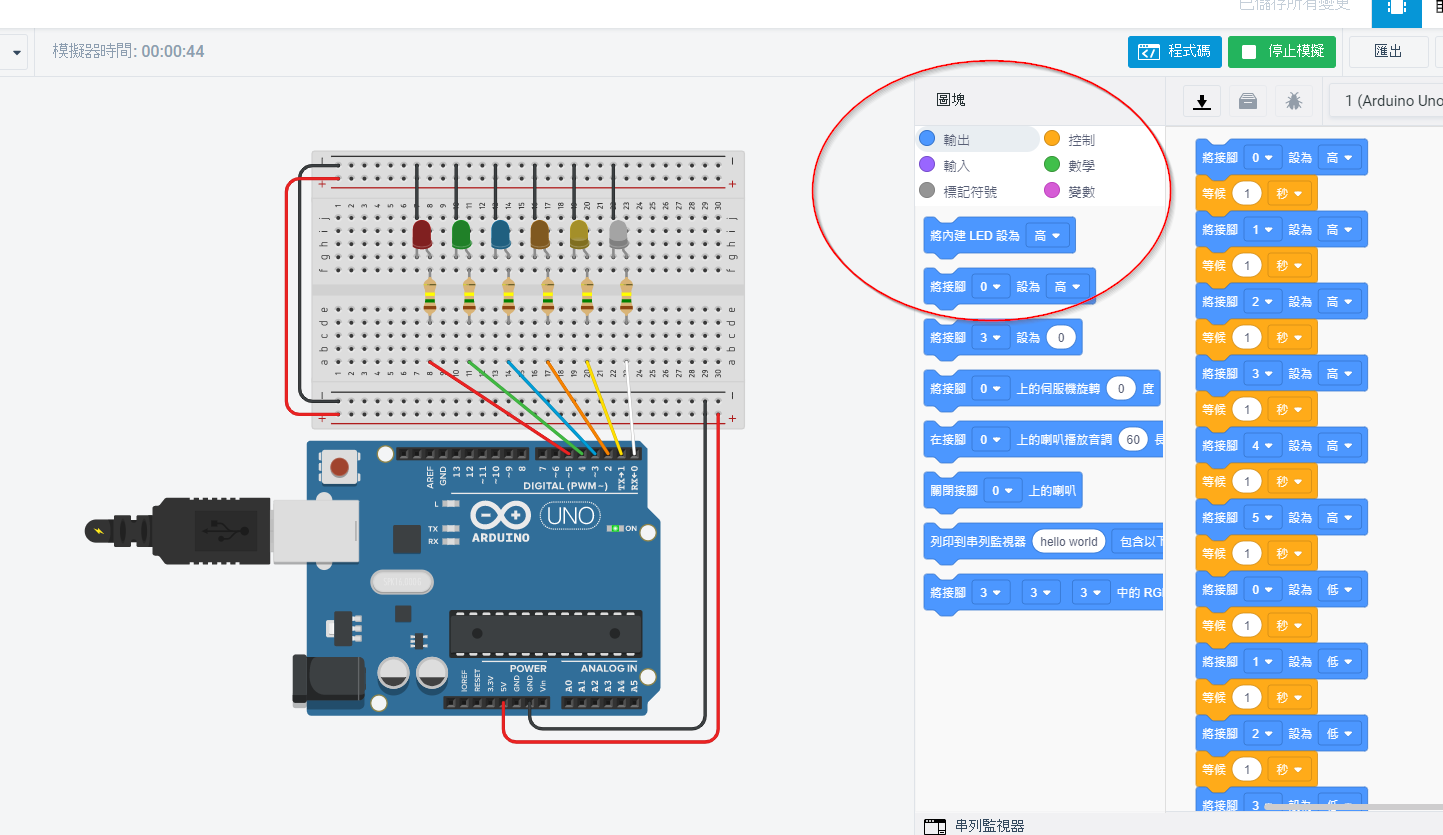
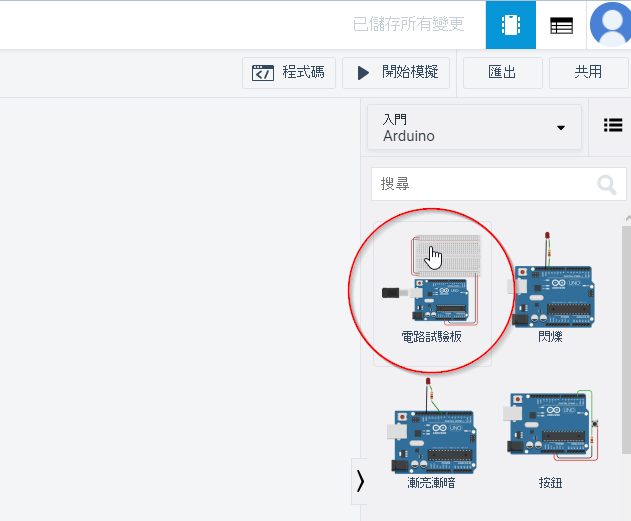
    我們來CREATE 一個新電路玩玩

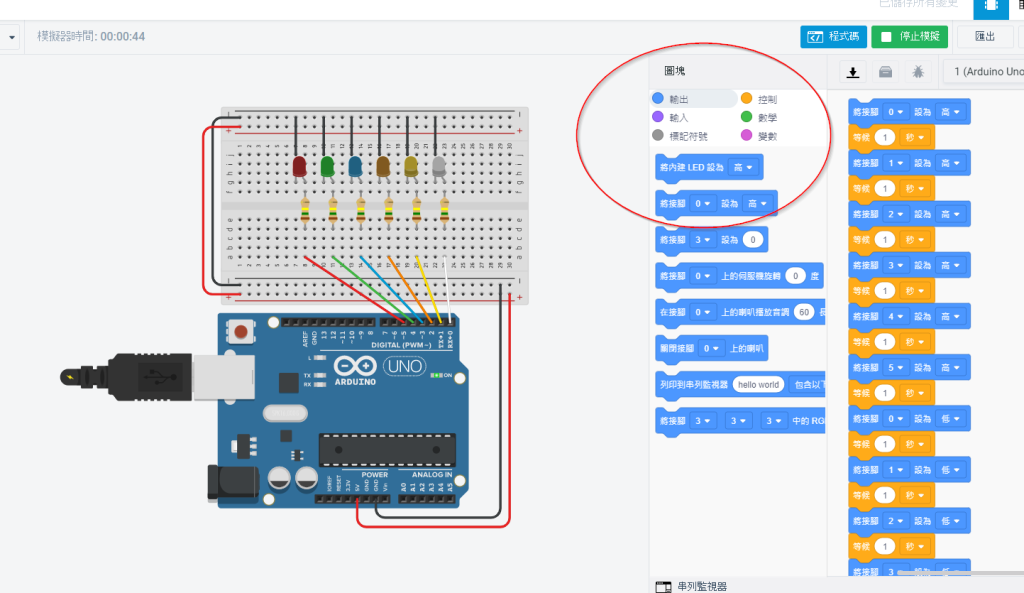
    新增了一個試驗板 , 加了 6 顆不同顏色 LED , 在每顆發光二極管加上一個150Ω 電阻(我自己會加大一點點, 我會用470Ω 電阻) , 為什麼要加上電阻? 因為可以防止LED承受過大電壓而燒壞

    如何計算電阻阻值

    LED限流電阻計算公式:限流電阻Ω = (電源電壓V – LED正向穩壓電壓V) / 限流電流A

    設紅色LED正向穩壓電壓2V,電流20mA,電源電壓5V,代入公式就是(5V-2V) / 0.02A = 150Ω

    你們可以參考以下網址 : https://www.gushiciku.cn/dc_news/digital_ZgNU

    用圖塊的方式製作, 就好像積木一樣 , 一顆一顆的接著發亮又關燈

  • 用 EXCEL VBA 製作密碼產生器

    我想很多 IT 的朋友都會遇過要大量產生密碼的時候 , 好多人都會設定同一密碼之後要求用戶再更改對嗎 ? 但好像存在某情度的風險對吧!

    所以我今次要分享用 EXCEL VBA 製作產生隨機密碼的小程序 , 你想了解一下什麼是 VBA 可以參考以下網址 :

    https://docs.microsoft.com/zh-tw/office/vba/api/overview/language-reference

    首先一想起隨機產生數字, 好多朋友會想到 EXCEL 內置的 RANDBETWEEN , 但我們要的是更複習的密碼 !

    例如 : 英文 + 數字+ 特殊字符 (kswdhn8772!@#$) 所以 randbetween 就不能滿足我了

    我的 VBA 內產生隨機字元的部分來自於以下網址 :

    https://www.thespreadsheetguru.com/the-code-vault/generate-string-random-characters-vba-codet?rq=Create%20a%20Randomized%20String%20of%20Characters

    我在這些代碼內再作修改 , 增加了可設定密碼長度和密碼數量 !

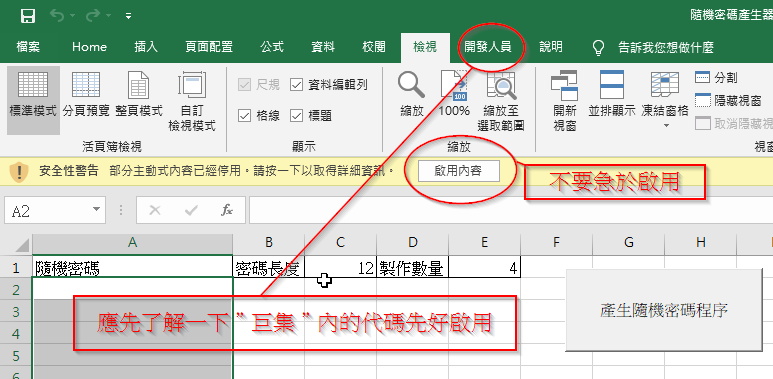
    但要提醒下載了我提供的 EXCEL 朋友不要立即啟用內含 『巨集』的程式 , 不論是我提供的程式或其他網站下載的程式 , 都不能立即啟用 , 先去看看程式內有沒有一些不對的代碼 !

    下載 隨機密碼產生器_V1.7z , 要用 7 ZIP 解壓呀 !

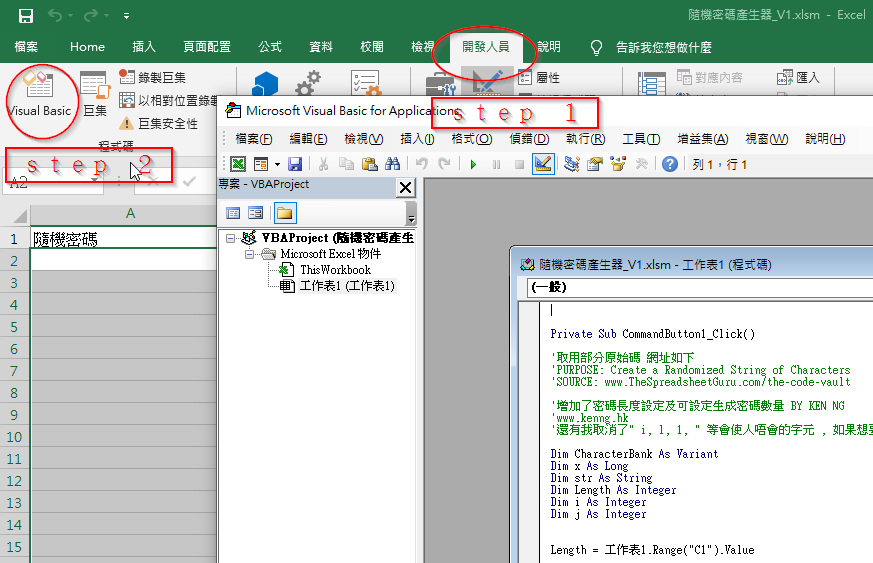
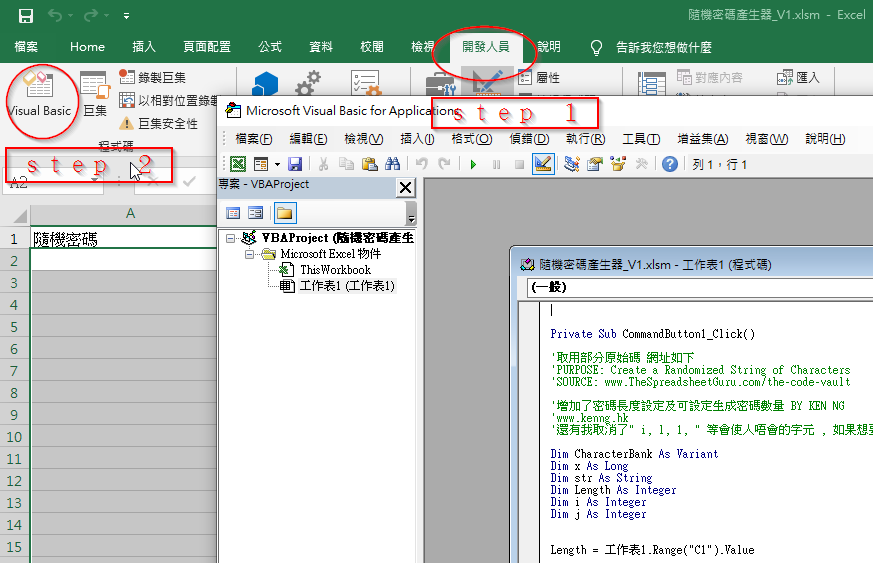
    如何開啟開發人員選項呢? 可以參考以下網址 : https://officeguide.cc/excel-show-developer-tab-tutorial/

    以下是我的 VBA 代碼 :

    Private Sub CommandButton1_Click()
    '取用部分原始碼 網址如下
    'PURPOSE: Create a Randomized String of Characters
    'SOURCE: www.TheSpreadsheetGuru.com/the-code-vault
    '增加了密碼長度設定及可設定生成密碼數量 BY KEN NG
    'www.kenng.hk/wp/wp/
    '還有我取消了" i, l, 1, " 等會使人唔會的字元 , 如果想要全字母及全數字可以自己修改 , 我留了那部分自己 uncommt
    Dim CharacterBank As Variant
    Dim x As Long
    Dim str As String
    Dim Length As Integer
    Dim i As Integer
    Dim j As Integer
    Length = 工作表1.Range("C1").Value
    If VarType(工作表1.Range("E1").Value) < 0 Then
    j = 1
    ElseIf VarType(工作表1.Range("E1").Value) > 1 Then
    j = Val(工作表1.Range("E1").Value)
    End If
    For i = 1 To j
    last111 = 工作表1.Cells(工作表1.Rows.Count, "A").End(xlUp).Row
    'Test Length Input
    If Length < 1 Then
    MsgBox "密碼長度不可以設定為零"
    Exit Sub
    End If
    CharacterBank = Array("a", "b", "c", "d", "e", "f", "g", "h", "j", _
    "k", "m", "n", "o", "p", "q", "r", "s", "t", "u", "v", "w", "x", _
    "y", "z", "0", "2", "3", "4", "5", "6", "7", "8", "9", "!", "@", _
    "#", "$", "%", "^", "&", "*", "A", "B", "C", "D", "E", "F", "G", "H", _
    "J", "K", "L", "M", "N", "P", "Q", "R", "S", "T", "U", "V", _
    "W", "X", "Y", "Z")
    'CharacterBank = Array("a", "b", "c", "d", "e", "f", "g", "h", "i", "j", _
    ' "k", "l", "m", "n", "o", "p", "q", "r", "s", "t", "u", "v", "w", "x", _
    ' "y", "z", "0", "1", "2", "3", "4", "5", "6", "7", "8", "9", "!", "@", _
    ' "#", "$", "%", "^", "&", "*", "A", "B", "C", "D", "E", "F", "G", "H", _
    ' "I", "J", "K", "L", "M", "N", "O", "P", "Q", "R", "S", "T", "U", "V", _
    ' "W", "X", "Y", "Z")
    'Randomly Select Characters One-by-One
    For x = 1 To Length
    Randomize
    str = str & CharacterBank(Int((UBound(CharacterBank) - LBound(CharacterBank) + 1) * Rnd + LBound(CharacterBank)))
    Next x
    'Output Randomly Generated String
    工作表1.Range("A" & last111 + 1).Activate
    工作表1.Range("A" & last111 + 1).Value = str
    str = ""
    Next i
    End Sub
    Private Sub Worksheet_SelectionChange(ByVal Target As Range)
    On Error GoTo 0 With Cells(Windows(1).ScrollRow, Windows(1).ScrollColumn) CommandButton1.Top = .Top + 10 CommandButton1.Left = .Left + 400 End With
    End Sub

    因為避免用戶看錯密碼, 所以我廢除了 ( i , l , 1 ) 等使人有機會看錯的字符

    稍為解釋一下代碼 : Private Sub CommandButton1_Click() 是當你按下那按鈕時執行的程序 ! 讀取 C1 及 E1 的數值 , 決定產生密碼長度及數量 , 再由 FOR LOOP 隨機生成 密碼字符 , 再輸出至 A 列 最後一行

    至於 Private Sub Worksheet_SelectionChange(ByVal Target As Range) 內的代碼是把 “產生隨機密碼程序” 那按鈕固定位置 , 不會因為 A 列不斷增加而消失

  • ConvertZZ 軟件 (繁簡轉換開源軟件)

    今次介紹的軟件, 或許有很多用家都不佰生 , 舊版本是十分好用, 我自己多數是用來轉換繁簡體字幕檔 ^_^ 用就是 CONVERZ 了, 但舊版已經不再更生了 ! 現在新版本 ConvertZZ 網址 : https://github.com/flier268/ConvertZZ

    經常下載簡體文件的朋友們應該都有這個困擾吧,文件下載下來,常常看到的都是一堆亂碼 亂碼的原因是因為兩國的慣用編碼不同,簡體使用GBK,而繁體使用BIG5,當GBK的文字「直接」看做BIG5時,就會出現亂碼

    一直以來,我慣用的簡繁轉換程式’ConvertZ’,但一直不太喜歡它的設計,為什麼上面總是要有一條Bar在那邊?為什麼開啟要等好幾秒?為什麼它有時候還會轉換失敗?為什麼作者好像都沒再更新了? 於是我開始計畫,意圖取代舊有的ConvertZ,改善這些問題。

    由於是繼承自ConvertZ,因此取名ConvertZZ

    下載連結 : https://github.com/flier268/ConvertZZ/releases

  • 在win 10 使用 adobe acrobat XI 會出現自動閃退解決辦法

    參考網頁來自 adobe support community

    https://community.adobe.com/t5/acrobat/adobe-acrobat-xi-standard-automatically-closes-after-opening/m-p/10698981?page=1#M226305

    只要下載更新升級到 11.0.23 版本就能暫時解決這問題 , 但不知道會不會隨著WIN10的下次更新又會使 ADOBE ACROBAT XI 失效

    下載網址

  • 高危漏洞影响 OpenSSL 1.1.1 的多个版本 , 請盡快升級

    以下內容節錄自 IT 之家 URL : https://www.ithome.com/0/484/097.htm

    OpenSSL 项目发布安全公告称存在一个影响 OpenSSL 1.1.1d, 1.1.1e 和 1.1.1f 的高危漏洞 (CVE-2020-1967),该漏洞可被用于发起 DoS 攻击。

    根据官方对该漏洞的描述,在 TLS 1.3 握手期间或握手之后调用 SSL_check_chain() 函数的服务器或客户端应用可能会导致崩溃,原因是不正确处理”signature_algorithms_cert” TLS 扩展而引起的空指针引用。如果从另一方接收到一个无效或未被识别的签名算法,则会发生崩溃。这可能会被恶意攻击者利用并发起 DoS 攻击。

    该漏洞由 Bernd Edlinger 通过 GCC 中的新静态分析通道 -fanalyzer 发现,并已于2020年4月7日向 OpenSSL 报告。

    对于受影响的 OpenSSL 1.1.1(1.1.1d,1.1.1e 和 1.1.1f)用户,建议尽可能快地升级到 1.1.1g。OpenSSL 1.1.1d 之前的版本不受此漏洞影响。

    更早的版本如 OpenSSL 1.0.2 和 1.1.0 也均未受影响,不过这些版本都不再被支持,也无法再接受更新。建议使用这些版本的用户升级至 OpenSSL 1.1.1。

  • Ubuntu 20.04 LTS 上架 Win10 應用商店

    以下內容轉載自 IT 之家 URL : https://www.ithome.com/0/483/457.htm

    IT之家4月19日消息 Ubuntu 20.04 LTS on Windows 已经上架 Microsoft Store 应用商店,Ubuntu 20.04 on Windows允许使用Ubuntu Terminal并运行Ubuntu命令行实用程序,包括bash,ssh,git,apt等。请注意,Windows 10 S不支持运行此应用程序。

    Ubuntu 20.04 LTS on Windows需要Windows 10 版本 16215.0 或更高版本,支持ARM64、x64体系结构。

    据IT之家了解,要启动Ubuntu 20.04 on Windows,请在命令行提示符(cmd.exe)上使用“ ubuntu2004”,或在“开始”菜单中单击Ubuntu磁贴。

    要使用此功能,首先需要使用“打开或关闭Windows功能”并选择“Windows Subsystem for Linux”,单击“确定”,重新启动,然后使用此应用程序。

    也可以使用Administrator PowerShell提示符执行以上步骤:

    Enable-WindowsOptionalFeature -Online -FeatureName Microsoft-Windows-Subsystem-Linux

    这个应用会在Windows Subsystem for Linux上安装Ubuntu 20.04 LTS版本。

    请注意,应用程序更新不会更改Ubuntu安装。要升级到新版本,请在Ubuntu Terminal终端中运行do-release-upgrade。

  • Linux 下配置 Let’s Encrypt 免費 SSL 証書方法 及 設定

    其實申請 Let’s Encrypt certificate 有很多方法,
    有很多 API 總有一款能配給到你系統的配置


    https://letsencrypt.org/zh-tw/docs/client-options/

    我自己就用 Linux bash shell :  acme.sh   &
    certbot  client 來申請 SSL 証書

    參考網站 :  

    烧饼博客

    Calos’s Blog

    DEVLOG of andyyou

  • 今次試的東西是 docker , 類似virtual machine, 又好像 沙盒

    今次我要試的是 DOCKER , 點解要試這個 ? 因為有公司舊的網頁要用 PHP 5.x 同時又要 PHP 7.x 雖然好多方法去實現同時運行多個 PHP VERSION , 但是一個好機會試吓新東西

    在文章最後有我參考過的網站文章連結

    大家先去了解什麼是 DOCKER
    參考網址 : https://philipzheng.gitbooks.io/docker_practice/content/

    好了大家了解都差不多了 , 那我們開始吧 !
    我用的是 ubuntu , 所以以下 command 都是 debian apt

    apt update
    apt upgrade
    apt install gnupg2
    apt install curl
    apt install software-properties-common
    curl -fsSL
    https://download.docker.com/linux/ubuntu/gpg | sudo apt-key add –
    add-apt-repository “deb [arch=amd64]
    https://download.docker.com/linux/ubuntu $(cat /etc/os-release | grep
    UBUNTU_CODENAME | cut -d ‘=’ -f 2) stable”
    apt update
    apt install docker-ce

    好了安裝完, 立即試一試, hello-world docker 有什麼反應先

    root@docker-test:~#
    docker run hello-world
    Unable to find image ‘hello-world:latest’ locally
    latest: Pulling from library/hello-world
    1b930d010525: Pull complete
    Digest:
    sha256:fc6a51919cfeb2e6763f62b6d9e8815acbf7cd2e476ea353743570610737b752
    Status: Downloaded newer image for hello-world:latest

    Hello from Docker!
    This message shows that your installation appears to be working
    correctly.

    To generate this message, Docker took the following steps:
    1. The Docker client contacted the Docker daemon.
    2. The Docker daemon pulled the “hello-world” image from the
    Docker Hub.
    (amd64)
    3. The Docker daemon created a new container from that image
    which runs the
    executable that produces the output you
    are currently reading.
    4. The Docker daemon streamed that output to the Docker
    client, which sent it
    to your terminal.

    To try something more ambitious, you can run an Ubuntu container with:
    $ docker run -it ubuntu bash

    Share images, automate workflows, and more with a free Docker ID:
    https://hub.docker.com/

    For more examples and ideas, visit:
    https://docs.docker.com/get-started/

    root@docker-test:~#

    當你行 docker run hello-world
    它會自動上到 “倉庫” 找 “hello-world” 這個影像檔然後執行

    之後我們再試下 ubuntu shell 看看

    docker run -it ubuntu bash

    root@docker-test:~#
    docker run -it ubuntu bash
    Unable to find image ‘ubuntu:latest’ locally
    latest: Pulling from library/ubuntu
    423ae2b273f4: Pull complete
    de83a2304fa1: Pull complete
    f9a83bce3af0: Pull complete
    b6b53be908de: Pull complete
    Digest:
    sha256:04d48df82c938587820d7b6006f5071dbbffceb7ca01d2814f81857c631d44df
    Status: Downloaded newer image for ubuntu:latest
    root@7b55e3f631cd:/#

    這個 shell 是在 ubuntu image 內執行的 , “7b55e3f631cd” 就是 docker 生成的 ubuntu 容器內裏就是一個 ubuntu

    root@7b55e3f631cd:/#
    ls -la
    total 72
    drwxr-xr-x 1 root root 4096 Feb 24 07:43 .
    drwxr-xr-x 1 root root 4096 Feb 24 07:43 ..
    -rwxr-xr-x 1 root root 0 Feb
    24 07:43 .dockerenv
    drwxr-xr-x 2 root root 4096 Feb 19 01:17 bin
    drwxr-xr-x 2 root root 4096 Apr 24 2018 boot
    drwxr-xr-x 5 root root 360 Feb 24 07:43 dev
    drwxr-xr-x 1 root root 4096 Feb 24 07:43 etc
    drwxr-xr-x 2 root root 4096 Apr 24 2018 home
    drwxr-xr-x 8 root root 4096 May 23 2017 lib
    drwxr-xr-x 2 root root 4096 Feb 19 01:15 lib64
    drwxr-xr-x 2 root root 4096 Feb 19 01:14 media
    drwxr-xr-x 2 root root 4096 Feb 19 01:14 mnt
    drwxr-xr-x 2 root root 4096 Feb 19 01:14 opt
    dr-xr-xr-x 392 nobody nogroup 0 Feb 24
    07:43 proc
    drwx—— 2 root root 4096 Feb 19 01:17 root
    drwxr-xr-x 1 root root 4096 Feb 21 22:20 run
    drwxr-xr-x 1 root root 4096 Feb 21 22:20 sbin
    drwxr-xr-x 2 root root 4096 Feb 19 01:14 srv
    dr-xr-xr-x 13 nobody nogroup 0
    Feb 20 03:34 sys
    drwxrwxrwt 2 root root 4096 Feb 19 01:17 tmp
    drwxr-xr-x 1 root root 4096 Feb 19 01:14 usr
    drwxr-xr-x 1 root root 4096 Feb 19 01:17 var
    root@7b55e3f631cd:/#

    其實概念就 docker 生成一個可讀寫的容器 , 把 image 投射內其中, 你在這個容器做的東西不會影響 image 內的資料 ,
    image 是唯讀的 !

    每個 docker 生成的容器都是獨立 , 容器究竟是什麼 , 如果你知道有些掃毒程式會創造 “沙盒” 來測試那些行檔是否中毒 !

    沙盒的概述可以看看這些網址
    https://www.arthurtoday.com/2011/06/sandbox.html
    http://www.pcdiy.com.tw/detail/11605

    同樣 docker 生成的容器就算被入侵 , 基本上都不會影響主機 !

    我們試一試裝個 apche , 先看看有那些 image 可以用先

    用command “docker search apache” 找找有什麼 image 可用

    root@docker-test:~#
    docker search apache
    NAME DESCRIPTION STARS OFFICIAL AUTOMATED
    httpd The Apache HTTP Server
    Project 2869 [OK]
    tomcat Apache Tomcat is an open source
    implementati… 2645 [OK]
    cassandra Apache Cassandra is an open-source
    distribut… 1092 [OK]
    maven Apache Maven is a software project
    managemen… 983 [OK]
    solr Solr is the popular, blazing-fast, open
    sour… 729 [OK]
    apache/nifi Unofficial convenience binaries and Docker
    i… 161 [OK]
    eboraas/apache-php PHP on Apache (with SSL/TLS support), built
    … 143 [OK]
    apache/zeppelin Apache
    Zeppelin 117 [OK]
    eboraas/apache Apache (with SSL/TLS support), built on
    Debi… 91 [OK]
    apache/airflow Apache
    Airflow 87
    groovy Apache Groovy is a multi-faceted language
    fo… 85 [OK]
    nimmis/apache-php5 This is docker images of Ubuntu 14.04 LTS
    wi… 61 [OK]
    apacheignite/ignite Apache Ignite In-Memory docker
    image. 60 [OK]
    bitnami/apache Bitnami Apache Docker
    Image 58 [OK]
    linuxserver/apache An Apache container, brought to you by
    Linux… 25
    apachepulsar/pulsar Apache Pulsar – Distributed pub/sub
    messagin… 22
    apache/nutch Apache
    Nutch 21 [OK]
    antage/apache2-php5 Docker image for running Apache 2.x with
    PHP… 16 [OK]
    webdevops/apache Apache
    container 14 [OK]
    newdeveloper/apache-php apache-php7.2 5
    lephare/apache Apache
    container 5 [OK]
    newdeveloper/apache-php-composer apache-php-composer 4
    secoresearch/apache-varnish Apache+PHP+Varnish5.0 2 [OK]
    oberonamsterdam/apache24-fpm Default Oberon apache setup using PHP-FPM,
    r… 1 [OK]
    jelastic/apachephp An image of the Apache PHP application
    serve… 0
    root@docker-test:~#

    有數十個 image 可用 , 有些包含 tomcat , 有些包含 php , 看看你想用那一個 !

    我們就用第一個 image “httpd” , 下載這個 image 執行 “docker pull httpd”

    root@docker-test:~#
    docker pull httpd
    Using default tag: latest
    latest: Pulling from library/httpd
    bc51dd8edc1b: Pull complete
    dca5bc65e18f: Pull complete
    ccac3445152a: Pull complete
    8515f2015fbc: Pull complete
    e35494488b8c: Pull complete
    Digest:
    sha256:b783a610e75380aa152dd855a18368ea2f3becb5129d0541e2ec8b662cbd8afb
    Status: Downloaded newer image for httpd:latest
    docker.io/library/httpd:latest
    root@docker-test:~#

    下載完成, 我們看看現在我們有多少個可用的 image 先 , 執行 ” docker images”

    root@docker-test:~#
    docker images


    REPOSITORY
    TAG IMAGE
    ID CREATED SIZE


    ubuntu
    latest 72300a873c2c 2 days
    ago 64.2MB


    httpd
    latest c562eeace183 3 weeks
    ago 165MB


    hello-world
    latest fce289e99eb9 13 months
    ago 1.84kB


    root@docker-test:~#

    我們已經有三個 image , 先前測試用的 “hello-world” & “ubuntu” , 還有剛下載的 “httpd”

    好了急不及待, 我們來創造一個 docker 環境行 apache 吧 !

    root@docker-test:~#
    docker run -d –name=apache2 httpd
    2d40f50299972e46392d10b9ecf8afbbe3189cace34aaadede7d1e372509b667

    已經生成了一個基於 httpd image 的容器 “–name” 給予這個容器一個別名

    當前有多少容器在運行 command : “dcoker ps -a”

    root@docker-test:~#
    docker ps -a
    CONTAINER
    ID IMAGE COMMAND CREATED STATUS PORTS NAMES
    2d40f5029997 httpd “httpd-foreground” 13 minutes
    ago Up 13
    minutes 80/tcp apache2
    7b55e3f631cd ubuntu “bash” 58 minutes ago Exited
    (127) 52 minutes
    ago elastic_morse
    a8560ebcedb9 hello-world “/hello” About an hour ago Exited (0)
    About an hour
    ago distracted_dubinsky

    你們可以看到 status 只有 apache2 在背環繼續執行 , 因為我創造apache容器時加了 “-d” daemon

    要停止那些容器 command : docker stop apache2

    root@docker-test:~#
    docker stop apache2
    apache2
    root@docker-test:~# docker ps -a
    CONTAINER
    ID IMAGE COMMAND CREATED STATUS PORTS NAMES
    2d40f5029997 httpd “httpd-foreground” 20 minutes
    ago Exited (0)
    5 seconds
    ago apache2
    7b55e3f631cd ubuntu “bash” About an hour ago Exited
    (127) About an hour
    ago elastic_morse
    a8560ebcedb9 hello-world “/hello” About an hour ago Exited (0)
    About an hour
    ago distracted_dubinsky

    你看到 status 已經停止了 , 可以用 “docker start apache2” 或 “docker restart
    apache2” 把容器重新運行

    root@docker-test:~#
    docker start apache2
    apache2
    root@docker-test:~# docker ps -a
    CONTAINER
    ID IMAGE COMMAND CREATED STATUS PORTS NAMES
    2d40f5029997 httpd “httpd-foreground” 23 minutes
    ago Up 2
    seconds 80/tcp apache2
    7b55e3f631cd ubuntu “bash” About an hour ago Exited
    (127) About an hour
    ago elastic_morse
    a8560ebcedb9 hello-world “/hello” About an hour ago Exited (0)
    About an hour
    ago distracted_dubinsky

    如果要完全移除這個容器,先停止這個容器再執行 command : docker rm apache2

    root@docker-test:~#
    docker rm apache2
    Error response from daemon:
    You cannot remove a running container
    2d40f50299972e46392d10b9ecf8afbbe3189cace34aaadede7d1e372509b667. Stop
    the container before attempting removal or force remove
    root@docker-test:~# docker stop apache2
    apache2
    root@docker-test:~# docker rm apache2
    apache2
    root@docker-test:~# docker ps -a
    CONTAINER
    ID IMAGE COMMAND CREATED STATUS PORTS NAMES
    7b55e3f631cd ubuntu “bash” About an hour ago Exited
    (127) About an hour
    ago elastic_morse
    a8560ebcedb9 hello-world “/hello” About an hour ago Exited (0)
    About an hour
    ago distracted_dubinsky
    root@docker-test:~#

    看到沒有已經移除了 apache2 這容器了 !

    好了講了這麼多要點樣 config 這個容器內 apache config 呢?

    我們先入去這個容器看看 ! 這個容器是個 linux 所以要linux shell 入去 !

    參考網址 : https://www.runoob.com/docker/docker-exec-command.html

    command : docker exec -it apache2 bash
    就是在 apache2 容器行 bash shell

    root@docker-test:~#
    docker exec -it apache2 bash
    root@48c49e4b63a3:/usr/local/apache2#

    已經取得 apache 容器 bash shell 了

    root@48c49e4b63a3:/usr/local/apache2#
    ls -la
    total 56
    drwxr-xr-x 1 www-data www-data 4096 Feb 2 00:15 .
    drwxr-xr-x 1 root root 4096 Feb 2 00:12
    ..
    drwxr-xr-x 2 root root 4096 Feb 2 00:15
    bin
    drwxr-xr-x 2 root root 4096 Feb 2 00:15
    build
    drwxr-xr-x 2 root root 4096 Feb 2 00:15
    cgi-bin
    drwxr-xr-x 4 root root 4096 Feb 2 00:15
    conf
    drwxr-xr-x 3 root root 4096 Feb 2 00:15
    error
    drwxr-xr-x 2 root root 4096 Feb 2 00:15
    htdocs
    drwxr-xr-x 3 root root 4096 Feb 2 00:15
    icons
    drwxr-xr-x 2 root root 4096 Feb 2 00:15
    include
    drwxr-xr-x 1 root root 4096 Feb 24 08:55 logs
    drwxr-xr-x 2 root root 4096 Feb 2 00:15
    modules

    這個 image 裝了 apache location 是 /usr/local/apache2 , 我們要的 apache config 就在 conf folder 內 !

    直接修改這個 conf 是可以的, 但不要忘記如果容器移除了, 資料一同移除 . 那麼如何保存這些資料 ?

    你可以把當前修改過的容器 , SAVE 成新的 image 使用 , 但我們今次用的是 “資料卷”
    https://philipzheng.gitbooks.io/docker_practice/content/data_management/volume.html

    我們現在把容器內的 apache conf folder copy 到實體機某 folder 進行修改及以資料卷的方式掛入 apache2 容器內

    root@48c49e4b63a3:/usr/local/apache2/conf#
    ls -la
    total 120
    drwxr-xr-x 4 root root 4096
    Feb 2 00:15 .
    drwxr-xr-x 1 www-data www-data 4096 Feb 2 00:15 ..
    drwxr-xr-x 2 root root 4096
    Feb 2 00:15 extra
    -rw-r–r– 1 root root 20823 Feb 2
    00:15 httpd.conf
    -rw-r–r– 1 root root 13064 Feb 2
    00:15 magic
    -rw-r–r– 1 root root 60847 Feb 2
    00:15 mime.types
    drwxr-xr-x 3 root root 4096
    Feb 2 00:15 original
    root@48c49e4b63a3:/usr/local/apache2/conf# exit
    exit
    root@docker-test:~# docker cp apache2:/usr/local/apache2/conf
    /opt/docker-apache2-conf/
    root@docker-test:~# ls -l /opt/docker-apache2-conf/conf/
    extra/ httpd.conf magic mime.types original/
    root@docker-test:~# ls -l /opt/docker-apache2-conf/conf/

    把apache2容器內/usr/local/apache2/conf 抄到實體機 /opt/docker-apache2-conf/

    我們先把容器停了及移除重新創造一個用資料卷的apche2容器

    root@docker-test:/opt/docker-apache2-conf#
    docker stop apache2
    apache2
    root@docker-test:/opt/docker-apache2-conf# docker rm apache2
    apache2
    root@docker-test:/opt/docker-apache2-conf#
    docker run -d –name=apache2 -v
    /opt/docker-apache2-conf/conf:/usr/local/apache2/conf   -v
    /opt/docker-apache2-conf/html:/var/www httpd
    52af877f4a8fbd927f3a8fea9e3568e3d8ee317f03f2a6e22f82cc083a8c670f

    解釋一下
    -v /opt/docker-apache2-conf/conf:/usr/local/apache2/conf
    -v /opt/docker-apache2-conf/html:/var/www

    用 -v 就是資料卷的意思
    主機 folder “/opt/docker-apache2-conf/conf” 投射入容器
    “/usr/local/apache2/conf” folder
    主機 folder “/opt/docker-apache2-conf/html” 投射入容器 “/var/www” folder

    一切都OK 了 , 但問題來了 ? 如何把主機的 listing port 投射入容器

    我們就要用 -p 8081:80

    List containers

    root@docker-test:/opt/docker-apache2-conf# docker ps -a
    CONTAINER ID IMAGE COMMAND CREATED STATUS PORTS NAMES
    52af877f4a8f httpd “httpd-foreground” 8 minutes
    ago Up 8
    minutes 80/tcp apache2
    7b55e3f631cd ubuntu “bash” 2 hours
    ago Exited
    (127) 2 hours
    ago elastic_morse
    a8560ebcedb9 hello-world “/hello” 2 hours
    ago Exited (0)
    2 hours
    ago distracted_dubinsky
    root@docker-test:/opt/docker-apache2-conf# docker stop apache2
    apache2
    root@docker-test:/opt/docker-apache2-conf# docker rm apache2
    apache2
    root@docker-test:/opt/docker-apache2-conf#
    docker run -d –name=apache2 -p 8081:80 -v
    /opt/docker-apache2-conf/conf:/usr/local/apache2/conf   -v
    /opt/docker-apache2-conf/html:/var/www httpd
    0995c2a40a9be6643f67df8db6664ffae4fea7022261190f08d732d23715f0b7
    root@docker-test:/opt/docker-apache2-conf# docker ps -a
    CONTAINER
    ID IMAGE COMMAND CREATED STATUS PORTS NAMES
    0995c2a40a9b httpd “httpd-foreground” 30 seconds
    ago Up 27
    seconds 0.0.0.0:8081->80/tcp apache2
    7b55e3f631cd ubuntu “bash” 2 hours
    ago Exited
    (127) 2 hours
    ago elastic_morse
    a8560ebcedb9 hello-world “/hello” 2 hours
    ago Exited (0)
    2 hours
    ago distracted_dubinsky
    root@docker-test:/opt/docker-apache2-conf#

    看到 status 主機 8081 port 投射到 容器的 80 port 了

    那就是外部連接主機的port 8081 就會 容器apache2 提供服務 http://xx.xx.xx.xx:8081/

    我參考過的網址

    https://blog.basec.cc/index.php/archives/65/
    https://github.com/acmesh-official/acme.sh/wiki/Run-acme.sh-in-docker
    https://www.jianshu.com/p/ea4a00c6c21c
    https://www.iszy.cc/2019/02/13/docker-acme-sh/
    https://segmentfault.com/a/1190000012063374
    https://blog.chengweichen.com/2015/05/docker-nginx-php-fpm-52-mysql.html
    https://my.oschina.net/u/3375733/blog/1591091
    https://beginor.github.io/2017/06/08/use-compose-instead-of-run.html
    https://zhuanlan.zhihu.com/p/45425683